What each plan gives you
Everything below is the real app, not a mock-up. Locked tools still show in the app with a padlock, so you can always see what you would get.
Free — £0
Plan a small event end to end: 50 guests, 3 rows of tables, no time limit.
Guest List
The free version holds up to 50 guests. Add people one at a time, import or delete lists.
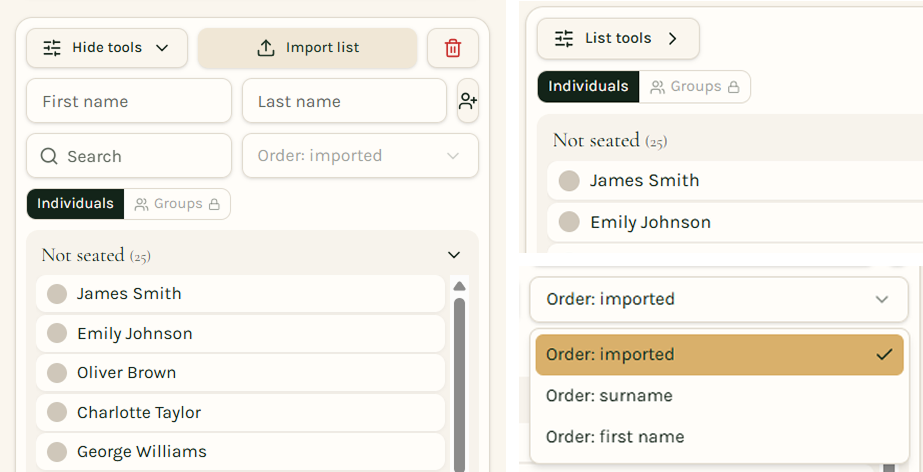
Minimise and Clear List
List Tools can be minimised to save space, and the full list can be deleted to start again, with the option to undo
Order the guest list
Switch between the order you imported, surname, or first name. People with no surname sit at the bottom, in first-name order.
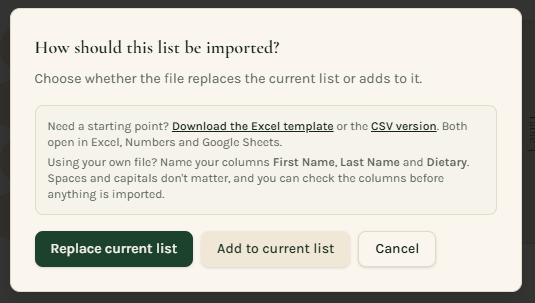
Import your guest list
Download a template or bring in your CSV or JSON file with First Name, Last Name and Dietary columns. "Import new list" replaces everyone; "Add to list" tops up with new names only.
Build your table layout
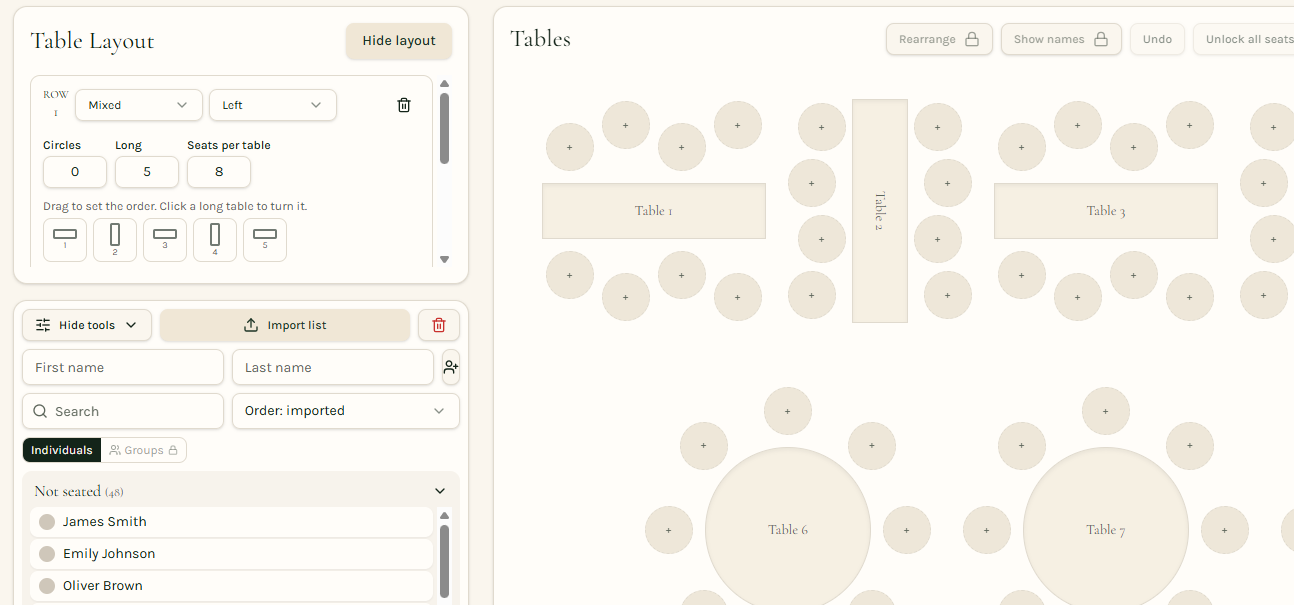
Choose between circle, long or mixed table arrangements. Tables rows can be aligned and long tables can be rotated. Drag mix table layout to fit your order. Joining rows of long tables require Planner Pro.
Save and open plan files
Save everything — guests, removed people, tables, table names and who sits where — to a file on your computer, and open it again later to carry on.

Seat people by clicking or dragging
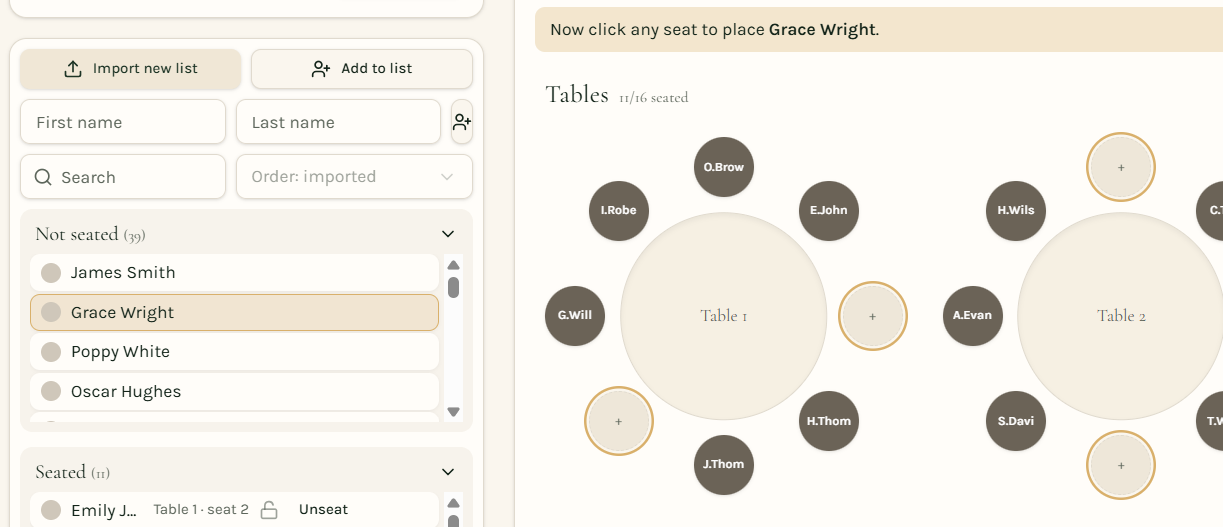
Click a name then a seat, click an empty seat then a name, or drag a name straight onto the chair. Everyone starts in Not seated and moves to Seated as you go.
Running totals
Seated, left to seat and seats available stay on screen, with a per-section count next to each table group.
Undo
Step back through your last actions if you seat someone by mistake.
Move two people
Click a seat, choose Move, then click another seat — occupied or empty — to swap or move them across.
Lock important seats
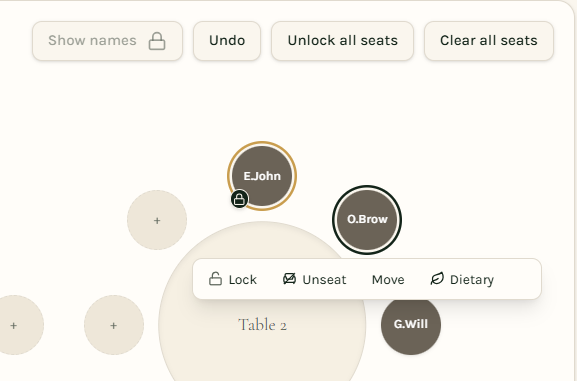
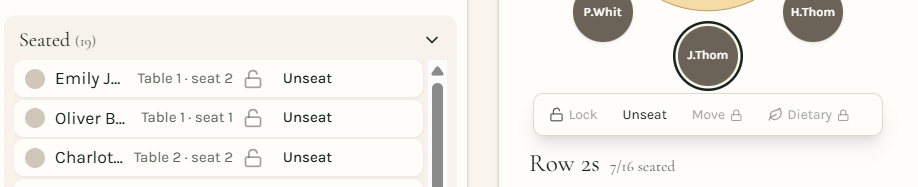
Lock a seat from its menu or beside the seated guest's name. Locked seats cannot be moved, unseated or cleared until you unlock them.
Unseat and clear
Click any taken seat to unseat that person, or use Clear all seats to return everyone to the Not seated list.
Rename tables
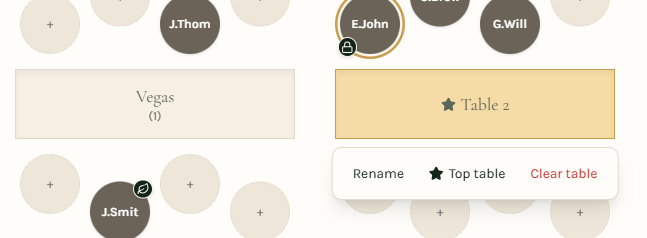
Call a table "Vegas" and it shows the name with the table number underneath, on screen and in every export.
Mark your top table
Click a table and use the star to mark it as the top table. It gets a subtle gold finish and only one table can be marked at a time.
Mark Children and Dietary needs
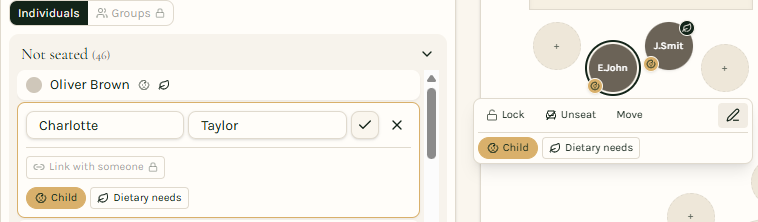
Tick a guest to be a child or having a dietary requirement and little icon appears on their name and their seat. Choosing the exact types comes with Planner Pro.
Remove list
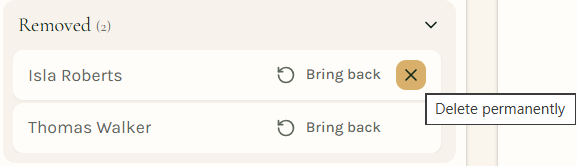
Take someone out without losing them — removed guests sit in their own list and count towards nothing until you bring them back.
NEW: One combined guest list
Seated and not-seated guests stay in a single list, so families and groups never jump between sections. Seated rows turn a gentle green and show their table and seat, with a chair icon to unseat them.
NEW: Drop a name anywhere on a table
Drag a guest onto the middle of a table and they take the next free chair — no need to aim at an exact seat. A full table tells you to make room first.
NEW: Full tables turn green
Every table shows how many seats are taken under its name (like 6/8). When it's full, the table gets a soft green fill and ring so you can spot finished tables at a glance.
NEW: Change seats and shape per table
Click any table to add or remove chairs, or switch it between circle, horizontal and vertical — just that table, not the whole row. Occupied chairs are always protected: seat someone else or clear the table before removing them.
NEW: Zoom and pan around big plans
Use the − / % / + buttons at the top of the tables area (or Ctrl + scroll) to zoom, and drag empty space to move around. Click the % to jump back to 100%. Exports always come out at full size.
Smart helpers
Time-saving tools that do the heavy lifting for you.
NEW: AI layout advisor
Press the star button next to Table Layout and describe your room in plain words — for example "12m x 8m, 40 guests, round tables of 8, a long top table". It suggests rows of tables and a starting zoom that fits your room. It always stays within your plan, and Undo puts your old layout back.
NEW: Auto Seat
Press Auto Seat (with the star) next to the Guests heading and everyone not yet seated fills the empty chairs. Groups are kept at the same table where there is room, and locked seats are never touched. Not happy? Press Undo.
NEW: FIT
Press FIT by the zoom buttons to shrink the drawing so every table fits across your screen, without going so small that names become unreadable.
NEW: Drag guests between groups
In the Groups view of the guest list, drag a name onto another group to move them into it, or onto "Not in a group" to take them out (Planner Pro).
Planner Pro — £10.00
Everything in the free version, plus every tool in the app. Everything in the free version, plus:
Unlimited guests and rows of tables
No caps on list size or how many groups of tables you set up.
Export your plan
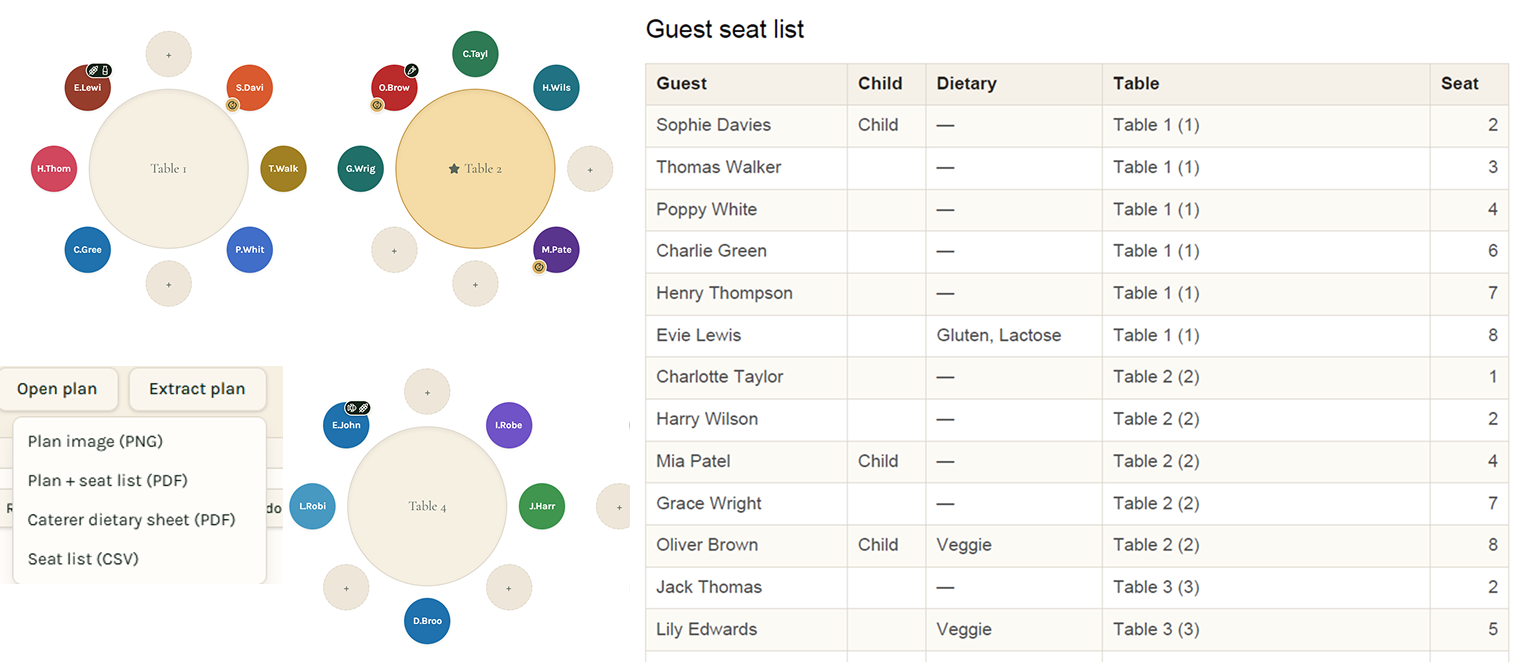
Take away a picture of the plan (PNG), a PDF with the plan on page one and a neat guest table on page two, or a CSV of name, dietary needs, table name, table number and seat number.
Caterer dietary sheet
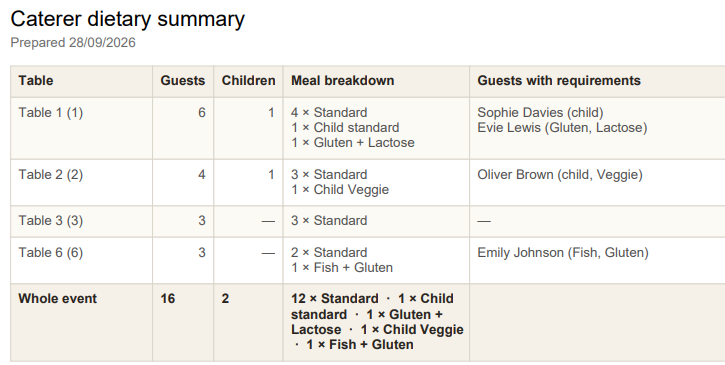
Under Extract plan, choose Caterer dietary sheet (PDF) for a one-page breakdown your venue or chef can work from: every table with its guest count, how many standard and special meals it needs, and the names of the people with each requirement, plus a whole-event total at the bottom.
Groups for couples and families
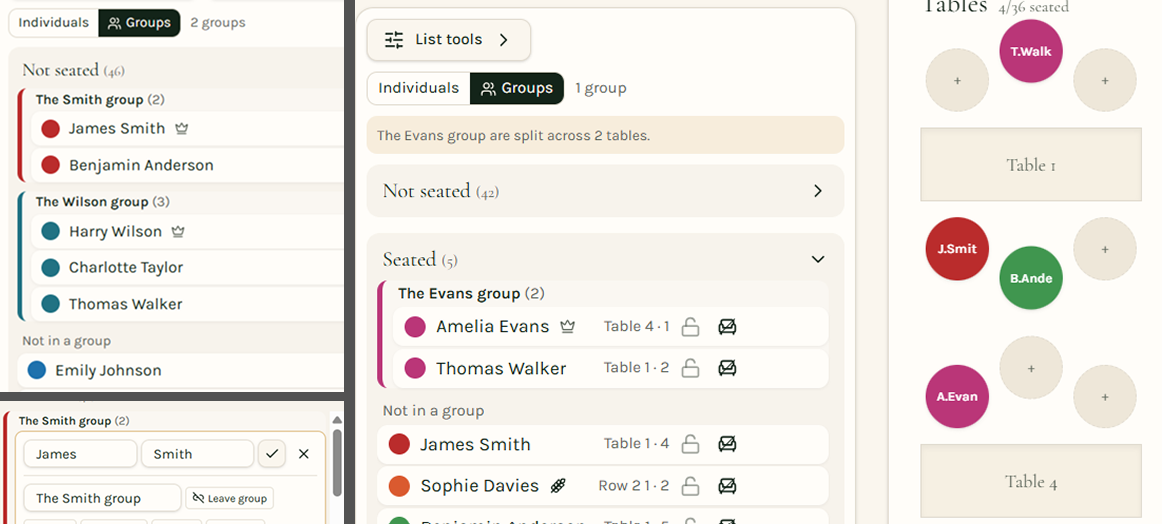
Use the link icon to group people. Groups need at least 2 people and a leader; the leader sets the group's name and colour for everyone in it.
Changing the group
You can leave a group or switch the leader at any time. Individual view sorts by each person's name, Group view sorts by the leader's name.
Gentle seating alerts
A quiet note when people in the same group end up seated apart — nothing is ever forced.
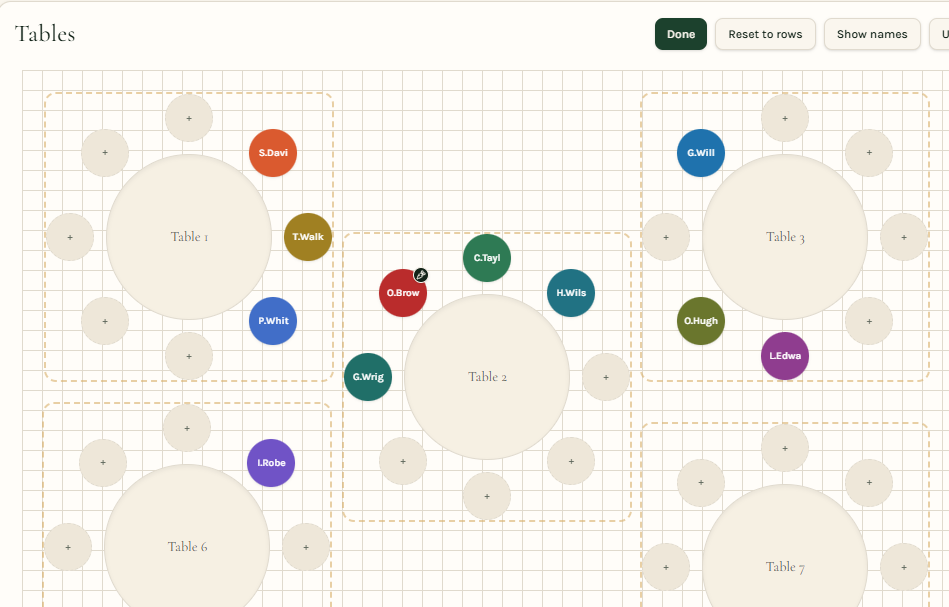
Precisely Rearrange Layout
Rearrange tables to match your room. Move tables along a grid and save or reset
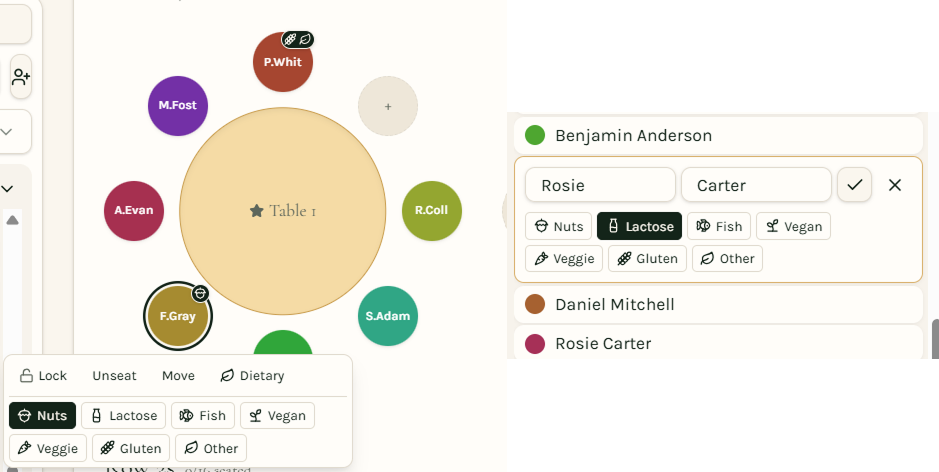
Colours on names and seats
Each guest gets a colour, making people easy to tell apart at a glance.
Dietary types
Open Dietary from a seat or a guest's pencil and choose Nuts, Lactose, Fish, Vegan, Veggie, Gluten or Other. Imported dietary words are matched automatically.
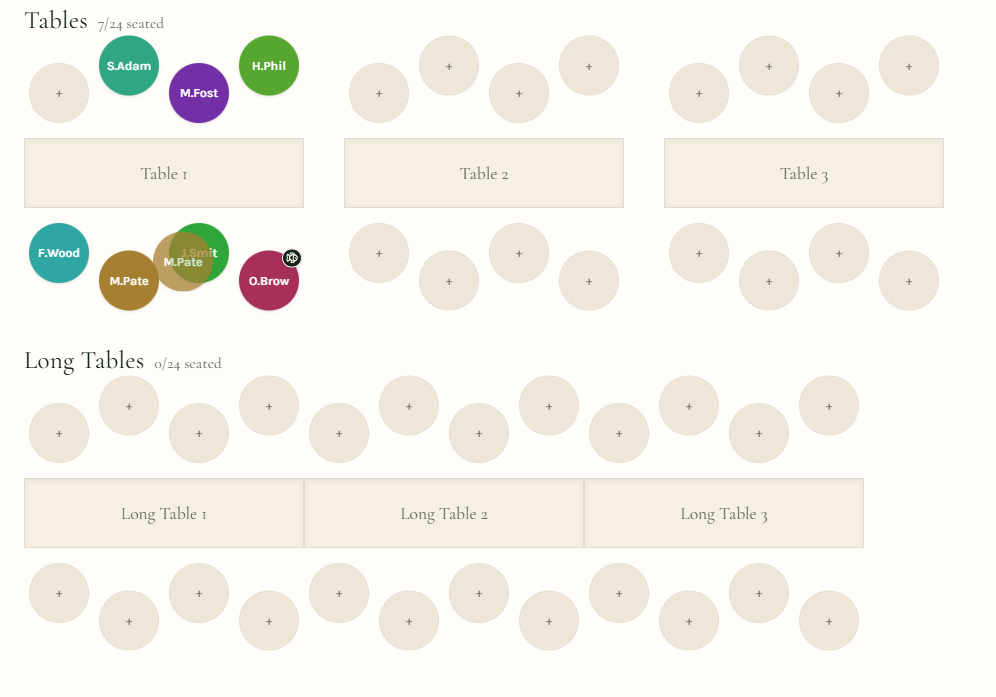
Push long tables into one run
Join long tables end to end into a single run — one continuous top table rather than separate trestles — with a seat available at each end of the whole run.
Drag and drop swapping
Drag someone from one chair straight onto another to swap them over.
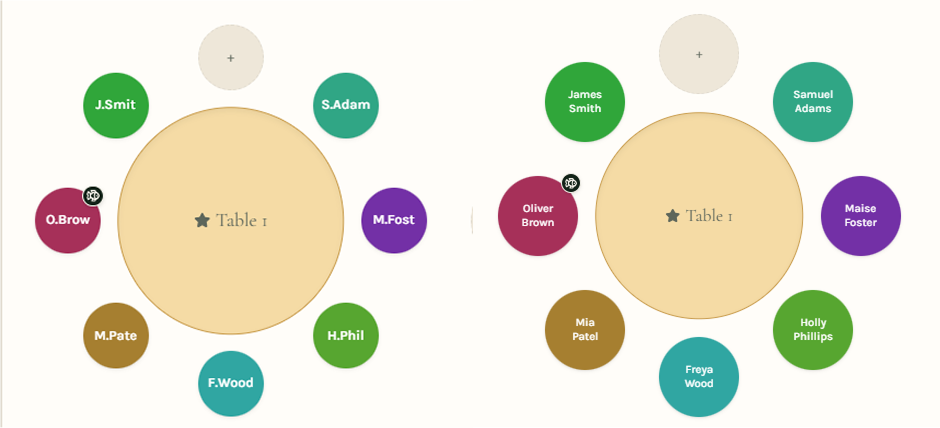
Initials or full names
Flip the whole plan between initials and full names — handy when tables are tight.
Good to know
- Each unlock code lasts 12 months and works on up to 2 devices.
- Renewing later costs less than a new code.
- Your guest list stays on your own computer — nothing is stored on our servers.
- Lost your code? Recover your unlock code.